Kintsugi scans the victim address for assets and presents them in four sections: ERC-20 tokens, ERC-721 NFTs, ERC-1155 holdings, and ENS names. Each is a checkbox; everything is selected by default.
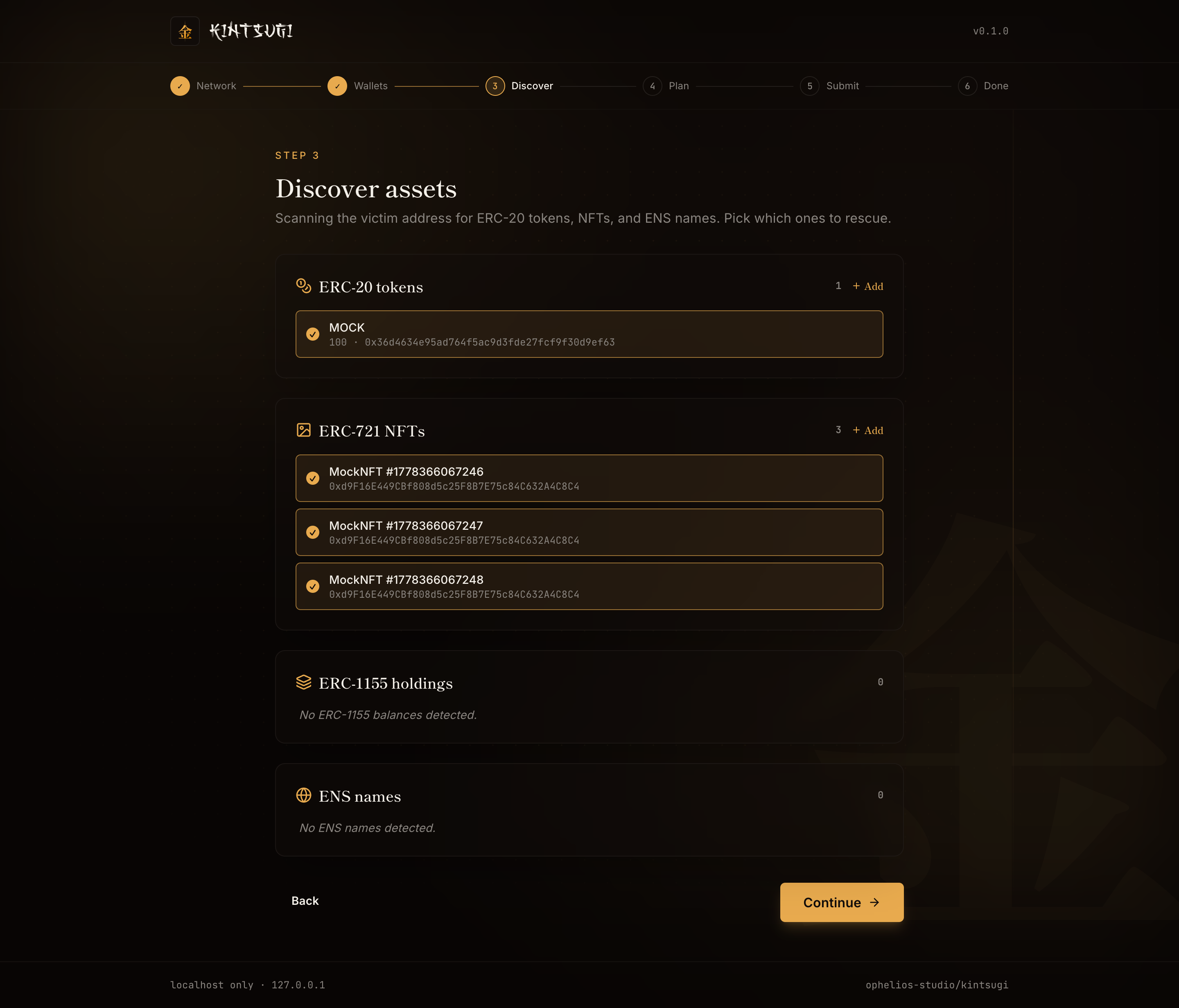
Auto-discovery
If you provided an Alchemy key on the Network step, Kintsugi uses Alchemy's token and NFT APIs to enumerate everything in one call per type. This is fast and complete for tokens and standard NFTs.
If you provided only a custom RPC URL (no Alchemy key), Kintsugi falls back to:
- Etherscan v2 for ERC-20 token discovery
- The ENS subgraph for ENS names
- On-chain
getLogschunked at 45 000 blocks for NFT transfer history
The on-chain fallback works for any RPC but is slower for wallets with long histories.
Manual entry
For long-tail assets that don't surface in auto-discovery, use the + Add buttons on each section.
Add an ERC-20
Paste the contract address, symbol, decimals, and balance (raw amount, not human-readable). The CLI will include a transfer of that exact amount in the batch.
Add an ERC-721
Paste the contract address, the NFT name (informational), and the tokenId.
Scan a whole collection
For NFTs in a known collection, click Scan a whole collection and paste the contract address. Kintsugi runs an on-chain getLogs scan for Transfer events to or from the victim address, computes current ownership, and lists every tokenId still owned. Select which to rescue.
This is the workflow for collections Alchemy doesn't index, or for confirming a long-tail collection is fully captured.
ENS names
The discovery picks up unwrapped .eth 2LDs (where you're the registrant or controller), wrapped names, and subdomains where you're the owner. Each kind generates the right batch ops automatically (controller reclaim plus registrant transfer for unwrapped 2LDs, NameWrapper transfer for wrapped, registry setOwner for subdomains).
See Asset support: ENS for the per-subtype mechanics.
Continue
Toggle off anything you don't want to rescue (rare; usually you want everything). Click Continue to build the batch and proceed to the Plan step.